10 WHMCS Admin Settings Most Providers Miss
WHMCS ships with defaults that cost you money. Here are 10 admin settings most providers miss, from invoice reminders to SMTP and 2FA.
MX Modules Team
(Updated )
In this article
- 1. Invoice Payment Reminder Settings
- 2. Credit Card Auto-Charge Attempts
- 3. Suspension and Termination Days
- 4. Client Area Password Policy
- 5. Support Ticket Auto-Close
- 6. Domain Sync (cron job)
- 7. Cancellation Request Settings
- 8. SMTP Email Configuration
- 9. Client Data Display Settings
- 10. Two-Factor Authentication for Admin
- Where to Start
- Frequently Asked Questions
- Will changing these settings affect existing clients?
- Can I test automation settings without affecting real clients?
- How often should I review these settings?
- Do these settings work the same on all WHMCS editions?
- Related
WHMCS works out of the box with reasonable defaults. Most providers install it, configure their products, and never revisit the general settings. That's a mistake.
Some defaults cost you money (late invoice reminders that never fire). Others frustrate clients (password policies that block perfectly valid passwords). A few create support tickets you could avoid entirely.
Here are 10 settings that are easy to change and have a real impact on your operation.
1. Invoice Payment Reminder Settings
Where: Setup > Automation Settings > Invoice Reminders
Default: No reminders configured.
The problem: Clients forget to pay. WHMCS generates the invoice but does nothing if the client ignores it. You end up manually chasing payments or letting revenue slip.
What to set:
| Reminder | Days | Purpose |
|---|---|---|
| First reminder | 3 days before due | "Your invoice is due soon" |
| Second reminder | 1 day after due | "Your invoice is overdue" |
| Third reminder | 7 days after due | "Action required: payment overdue" |
| Final notice | 14 days after due | "Service suspension warning" |
Why it matters: Automated reminders recover 15-30% of overdue invoices without any manual effort. Most clients don't ignore invoices on purpose. They forget, the email got buried, or the credit card on file expired.
2. Credit Card Auto-Charge Attempts
Where: Setup > Automation Settings > Attempt AutoCC
Default: Enabled, but only runs once.
The problem: If a client's card fails on the first attempt (temporary hold, daily limit reached, card expired), WHMCS marks the invoice as unpaid and stops trying.
What to set: Enable automatic retry. Set it to attempt the charge again after 3 days, then again after 7 days. Three total attempts covers most temporary card issues.
Why it matters: Card failures are often temporary. A retry 3 days later catches clients who updated their card details or whose bank released the hold. Without retries, you send a manual email asking them to pay, which adds support overhead.
3. Suspension and Termination Days
Where: Setup > Automation Settings > Suspension/Termination
Default: Varies, but many providers leave this too aggressive or too lenient.
Recommended settings:
| Action | Days After Due Date | What happens |
|---|---|---|
| Suspension | 7 days | Service suspended, client notified |
| First overdue notice | 1 day | Email reminder |
| Second overdue notice | 3 days | Email with urgency |
| Termination | 30 days | Service terminated, data deleted |
Why it matters: Too aggressive (suspend after 1 day) and you'll lose clients over a card glitch. Too lenient (no suspension for 30 days) and clients learn they can use your services for free for a month. 7 days for suspension is a fair balance.
Important: Never set termination to less than 14 days. Clients on vacation, dealing with emergencies, or going through billing department approvals need time. 30 days gives enough buffer while still protecting you from long-term non-payment.
4. Client Area Password Policy
Where: Setup > General Settings > Security
Default: WHMCS enforces a basic password policy, but older installations may have weaker defaults.
What to review: Make sure you require at least 8 characters, mixed case, and one number. But don't go overboard. Requiring special characters, 16+ characters, and no repeated characters creates more support tickets ("I can't log in") than it prevents security issues.
Recommended:
- Minimum 8 characters
- At least one uppercase and one number
- No forced special characters
- No forced password changes every 90 days (NIST dropped this recommendation years ago)
Why it matters: The number one cause of "I can't access my account" tickets is password frustration. A reasonable policy protects accounts without driving clients to your support desk.
5. Support Ticket Auto-Close
Where: Setup > Automation Settings > Support
Default: Tickets stay open until manually closed.
The problem: Your ticket queue fills up with tickets waiting for client replies that never come. A client asks a question, you answer, they never respond. The ticket sits in "Customer Reply Awaited" forever.
What to set: Auto-close tickets after 72-96 hours of no client response. Send a notification before closing ("We're closing this ticket since we haven't heard back. Reopen anytime by replying.").
Why it matters: A clean ticket queue means you can actually see which tickets need attention. When 40% of your open tickets are stale conversations from last month, your real response metrics are meaningless.
6. Domain Sync (cron job)
Where: Setup > Automation Settings > Domain Sync
Default: Disabled on many installations.
The problem: If you resell domains, WHMCS shows the expiry date from when the domain was originally registered. If the client renews the domain directly at the registrar (or the registrar auto-renews), WHMCS still shows the old expiry date. This leads to confusing renewal notices.
What to set: Enable Domain Sync in your cron configuration. This tells WHMCS to check the actual registrar status and update expiry dates automatically.
Why it matters: Incorrect domain expiry dates generate unnecessary renewal invoices and confused clients. "Why am I getting a renewal notice? I already renewed." Every one of these is a support ticket.
7. Cancellation Request Settings
Where: Setup > General Settings > Other
Default: Cancellation requests go to a queue and wait for manual processing.
What to review: Decide whether cancellations should be processed automatically at end of billing period or require manual approval. For most providers:
| Product Type | Recommendation |
|---|---|
| Shared hosting | Auto-process at end of billing period |
| VPS/Dedicated | Manual approval (check for data backup needs) |
| Domains | Manual approval (confirm client understands implications) |
| Add-on services | Auto-process at end of billing period |
Why it matters: If cancellations sit in a queue for days, clients get frustrated and open tickets asking "did you process my cancellation?" Auto-processing standard products reduces this friction. Keep manual approval for products where you need to verify data handling.
8. SMTP Email Configuration
Where: Setup > General Settings > Mail
Default: WHMCS uses PHP mail() function.
The problem: PHP mail() has terrible deliverability. Your invoices, welcome emails, and password resets end up in spam folders. Clients say "I never got the invoice" and it's true.
What to set: Configure a proper SMTP server. Options:
| Provider | Free Tier | Paid |
|---|---|---|
| Postmark | 100 emails/mo | $15/mo for 10K |
| Amazon SES | 62K/mo (if sending from EC2) | $0.10 per 1K |
| Mailgun | 100/day (for testing) | $15/mo for 10K |
| Your own mail server | Depends on setup | Maintenance overhead |
Why it matters: If 10% of your invoices go to spam, that's 10% of revenue at risk. Proper SMTP with authentication (SPF, DKIM, DMARC) is the single highest-impact change for payment collection. Once your emails land reliably, tools like MX Metrics can help you track whether revenue collection actually improves.
9. Client Data Display Settings
Where: Setup > General Settings > Ordering
Default: WHMCS shows various fields during signup and in the client area.
What to review: Remove fields you don't need. Every field you require during signup is friction that reduces conversion.
Fields most hosting providers don't need:
| Field | Keep? | Why |
|---|---|---|
| Company name | Optional (not required) | Many clients are individuals |
| Address line 2 | Remove | Rarely used |
| Phone number | Optional | Not needed for digital services |
| Tax ID / VAT | Only if legally required | Depends on your jurisdiction |
| State/Region | Keep (for tax) | Required for US/EU tax compliance |
Why it matters: A signup form with 15 required fields loses clients. Every extra field reduces conversion by 5-10%. If you don't need it for billing or legal compliance, make it optional or remove it.
10. Two-Factor Authentication for Admin
Where: Setup > Staff Management > My Account
Default: Not enabled.
The problem: Your WHMCS admin panel has access to all client data, payment information, server credentials, and billing history. If someone compromises an admin password (phishing, credential stuffing, shared passwords), they have everything.
What to set: Enable 2FA for every admin and staff account. WHMCS supports time-based one-time passwords (TOTP) via apps like Google Authenticator, Authy, or 1Password.
Why it matters: This is the single most important security setting. It takes 2 minutes to enable and blocks 99% of credential-based attacks. If you have multiple staff members accessing WHMCS, make 2FA mandatory, not optional.
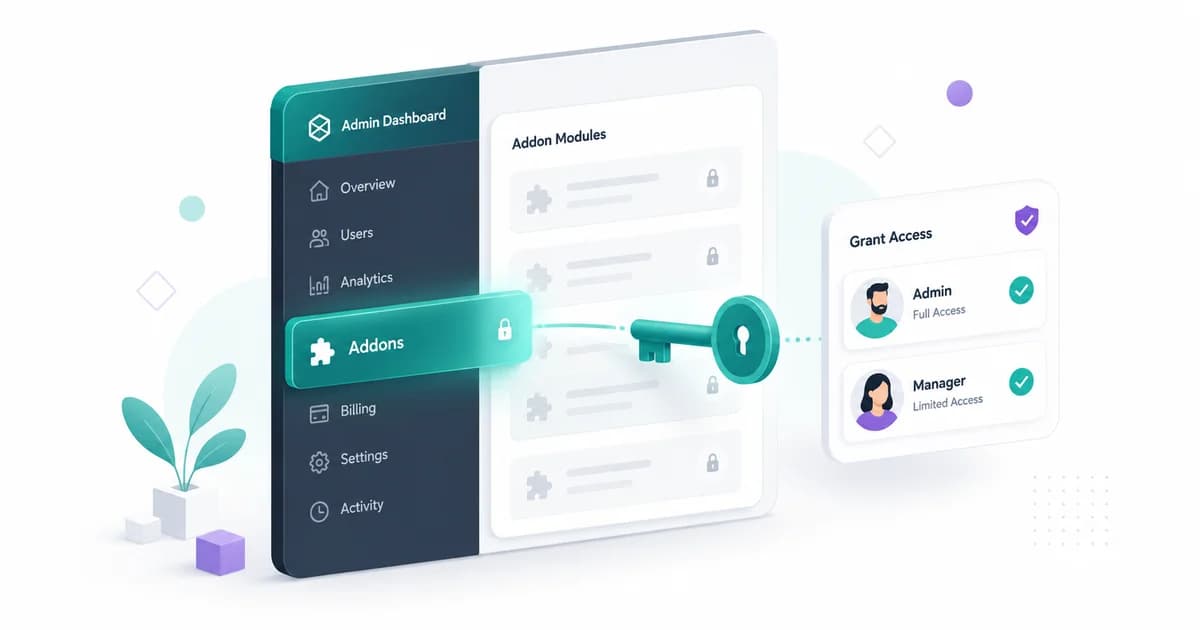
While you are managing staff accounts, check what each role can actually open. If an addon is activated but a staff member cannot see it in the Addons menu, that is WHMCS Access Control, not a bug.
Where to Start
If you only change 3 settings today:
- SMTP email (#8). Your invoices need to arrive. Everything else depends on this.
- Invoice reminders (#1). Stop chasing payments manually.
- Admin 2FA (#10). Protect your entire operation.
These three changes take about 30 minutes combined and will have more impact on your business than most product changes.
Frequently Asked Questions
Will changing these settings affect existing clients?
Most of these settings apply going forward. Invoice reminders will start firing for the next billing cycle. Ticket auto-close affects currently open tickets (clients will get the notification). Password policy changes apply on next password reset, not retroactively.
Can I test automation settings without affecting real clients?
Yes. Create a test client in WHMCS and run through the automation cycle. WHMCS lets you manually trigger cron jobs from Utilities > Cron Status to test without waiting for the scheduled run.
How often should I review these settings?
Once per quarter is enough. WHMCS updates sometimes add new settings or change defaults. A 15-minute review every 3 months catches anything that needs adjustment.
Do these settings work the same on all WHMCS editions?
Yes. All 10 settings are available in WHMCS Starter, Plus, and Business editions. Some advanced automation features (like conditional workflows) require Business edition, but the basics covered here work on all plans.
Related
- Send Client Proposals from WHMCS - Build a professional sales workflow inside WHMCS
- Onboard New Hosting Clients in WHMCS - Reduce early churn with a structured onboarding process
- MX Metrics - Track MRR, ARR, and revenue per client directly in WHMCS
MCP Server
AI Integration for WHMCS
Connect AI to your WHMCS. Query clients, invoices, and tickets using natural language. Cancel anytime.
Documentation
Did you find this helpful?
Join other WHMCS professionals and get our latest guides and AI tips directly in your inbox.
MX Modules Team
We run a hosting business on WHMCS. These modules are the tools we built to solve our own problems, and now we share them with other providers.