Integrate AI with WHMCS via MCP (10-Minute Setup)
Step-by-step: integrate Claude or ChatGPT with your WHMCS using MCP Protocol. Automate client lookups, invoicing, and support in minutes.
MX Modules Team
(Updated )
In this article
- What is the Model Context Protocol (MCP)?
- Why Integrate AI with WHMCS?
- What Can I Do with Natural Language?
- How Can AI Help with Support?
- How Can I Get Business Insights?
- How Do I Get Started with MCP Server?
- What Do I Need Before Starting?
- Step 1: Install the Module
- Step 2: Configure Authentication
- Step 3: Configure Claude Desktop
- Step 4: Test the Connection
- What MCP Tools Are Available?
- What Are the Client Tools?
- What Are the Service Tools?
- What Are the Billing Tools?
- What Are the Ticket Tools?
- What Are Real-World Use Cases?
- How Do I Check Morning Revenue?
- How Do I Manage Services in Bulk?
- How Do I Generate Quotes?
- What Are the Security Considerations?
- How Does Token Auth Work?
- What Permission Controls Exist?
- How is Data Protected?
- What Are the Best Practices?
- Should I Start with Read-Only?
- Should I Use Specific Prompts?
- Should I Verify Critical Actions?
- Should I Monitor Usage?
- Frequently Asked Questions
- Is my data sent to AI servers?
- Which AI assistants support MCP?
- Can I limit what AI can access?
- Will this slow down my WHMCS?
- What's the Bottom Line?
The hosting industry is undergoing a major transformation. AI assistants like Claude and ChatGPT are no longer just chatbots. They're becoming powerful tools that can manage entire business operations. But there's been one major obstacle: connecting AI to WHMCS.
Until now, integrating AI with WHMCS required custom API development, complex authentication systems, and significant programming knowledge. The Model Context Protocol (MCP) changes everything.
What is the Model Context Protocol (MCP)?
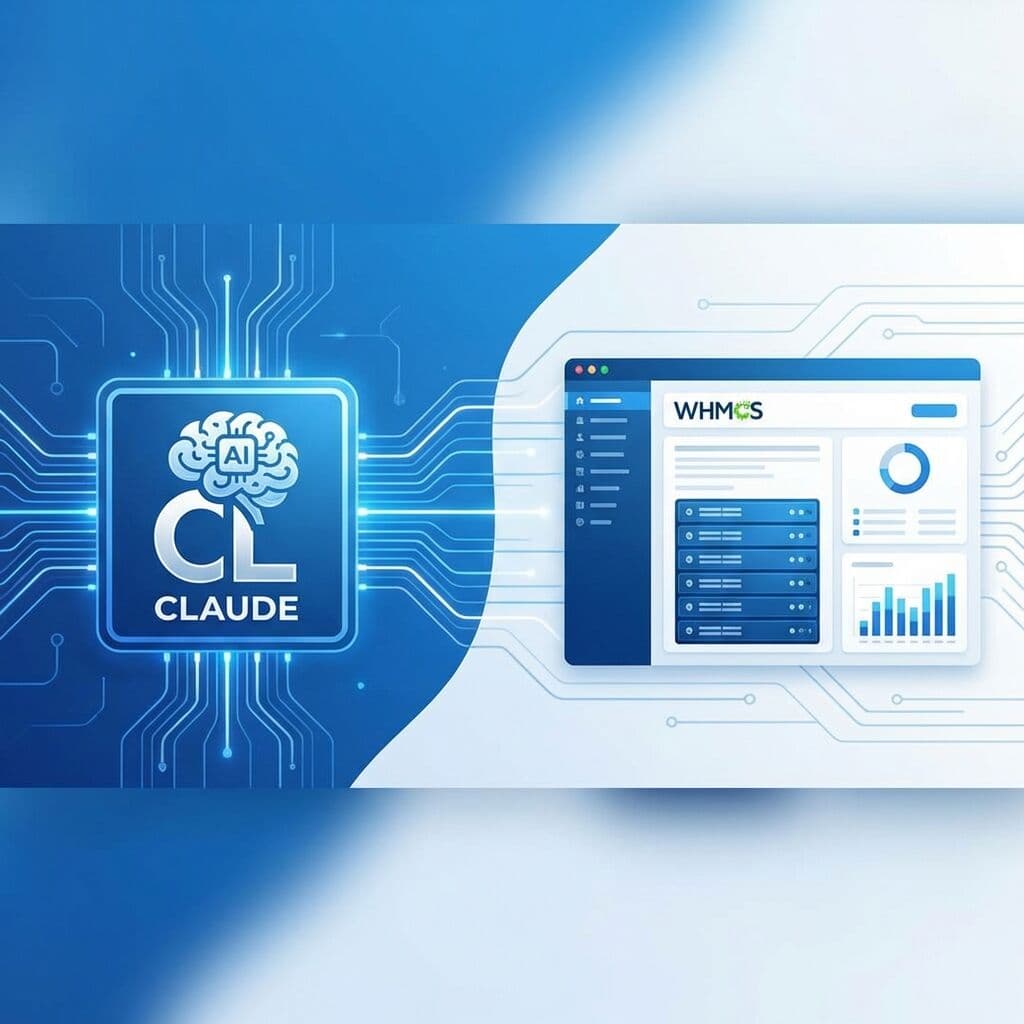
MCP is an open standard developed by Anthropic that allows AI assistants to securely connect with external tools and data sources. Think of it as a universal translator between AI and your business software. For a deeper comparison with the traditional WHMCS API, see MCP Server vs Traditional WHMCS API.
Instead of training AI on your data or building complex integrations, MCP provides a standardized way for AI to:
- Read data from your WHMCS installation
- Execute actions like creating invoices or suspending services
- Respond intelligently based on real-time business information
This means you can ask Claude: "Show me all clients with overdue invoices" and get an accurate, real-time answer. Not a generic response.
Why Integrate AI with WHMCS?
Before diving into the how, let's understand the why. Here's what AI integration enables:
What Can I Do with Natural Language?
Instead of clicking through WHMCS menus, you can simply tell your AI assistant what you need:
- "Create an invoice for client John Smith for $500 in consulting services"
- "Suspend all services for clients with invoices overdue by 30+ days"
- "Show me this month's revenue breakdown by product"
How Can AI Help with Support?
AI can access client information and provide accurate support:
- "What hosting plan does client #1234 have?"
- "When does the domain example.com expire?"
- "List all active tickets for Company ABC"
How Can I Get Business Insights?
Get instant insights without running reports:
- "Who are my top 10 clients by revenue?"
- "What's my monthly recurring revenue?"
- "Which products have the highest churn rate?"
How Do I Get Started with MCP Server?
The MCP Server module provides everything you need to connect AI assistants to your WHMCS installation. For detailed setup instructions, see the official documentation. Here's a quick overview:
What Do I Need Before Starting?
Before you begin, make sure you have:
- WHMCS 8.0 or newer
- PHP 8.1 or higher
- An AI assistant that supports MCP (Claude Desktop, Cursor, etc.)
- Administrator access to your WHMCS installation
Step 1: Install the Module
- Download MCP Server from your MX Modules account
- Extract the files to your WHMCS installation
- Navigate to Setup > Addon Modules
- Find "MCP Server" and click Activate
Step 2: Configure Authentication
MCP Server uses Bearer token authentication. To generate your token:
- Go to Addons > MCP Server
- Click Generate API Token
- Copy the token. You'll need it for Claude configuration
Important: Keep your Bearer token secure. It provides full access to your WHMCS data and operations.
Step 3: Configure Claude Desktop
Add the MCP server to your Claude Desktop configuration:
{
  "mcpServers": {
    "whmcs": {
      "command": "npx",
      "args": [
        "mcp-remote",
        "https://your-whmcs.com/modules/addons/mx_mcp/mcp.php",
        "--header",
        "Authorization:Bearer YOUR_BEARER_TOKEN"
      ]
    }
  }
}
Replace your-whmcs.com with your actual WHMCS URL and YOUR_BEARER_TOKEN with the token generated in Step 2.
Step 4: Test the Connection
Open Claude Desktop and try a simple query:
"List my WHMCS clients"
If everything is configured correctly, Claude will return a list of your clients with their details.
What MCP Tools Are Available?
MCP Server includes 46 AI tools organized into 9 categories. See the complete tools reference for detailed parameters and examples.
Here is a quick overview of what each category covers.
| Category | Tool Examples | What It Does |
|---|---|---|
| Client Management | list_clients, get_client, create_client, update_client | Search, view, create, and update client records. Filter by status, location, or custom fields. |
| Financial / Billing | list_invoices, create_invoice, record_payment, list_orders, accept_order | Create invoices, record payments, view overdue balances, process pending orders. |
| Support / Tickets | list_tickets, get_ticket, create_ticket, reply_ticket | View open tickets, read full ticket threads, open new tickets, and post replies. |
| Service Management | list_services, provision_service, suspend_service, unsuspend_service, terminate_service | View hosting services, activate new accounts, suspend for non-payment, and cancel services. |
| Analytics / Reporting | Combined use of client, billing, and service tools | Generate revenue reports, identify top clients, calculate MRR, and spot churn risks by querying across multiple data types. |
Below is the full breakdown by category.
What Are the Client Tools?
list_clients- Search and filter clientsget_client- Get detailed client informationcreate_client- Add new clientsupdate_client- Modify client details
What Are the Service Tools?
list_services- View all hosting servicesprovision_service- Activate new servicessuspend_service- Suspend for non-paymentunsuspend_service- Reactivate servicesterminate_service- Cancel services
What Are the Billing Tools?
list_invoices- View invoices with filterscreate_invoice- Generate new invoicesrecord_payment- Mark invoices as paidlist_orders- View pending ordersaccept_order- Process orders
What Are the Ticket Tools?
list_tickets- View support ticketsget_ticket- Read ticket detailscreate_ticket- Open new ticketsreply_ticket- Respond to tickets
What Are Real-World Use Cases?
For more practical examples, see our guide on 10 WHMCS Tasks You Can Automate with AI.
How Do I Check Morning Revenue?
Start your day by asking Claude:
"Give me a summary of yesterday's revenue, any overdue invoices, and open support tickets"
Claude will compile a morning briefing with actionable insights.
How Do I Manage Services in Bulk?
Handle multiple clients at once:
"Suspend all services for clients who haven't paid in 45 days, and create a list of affected accounts"
How Do I Generate Quotes?
Speed up sales:
"Create a quote for client ABC Corp for a VPS package at $99/month plus SSL certificate at $49/year"
What Are the Security Considerations?
When integrating AI with business-critical systems, security is paramount. MCP Server implements:
How Does Token Auth Work?
- Unique tokens per installation
- Token regeneration capability
- Request logging for audit trails
What Permission Controls Exist?
- Read-only mode option
- Action whitelisting
- IP restriction support
How is Data Protected?
- HTTPS encryption required
- No sensitive data caching
- WHMCS permission integration
What Are the Best Practices?
Should I Start with Read-Only?
Begin by using AI for queries and reports. Once comfortable, enable write operations.
Should I Use Specific Prompts?
Instead of "show me clients," try "list active clients in the United States with monthly billing."
Should I Verify Critical Actions?
Always verify AI-generated actions before executing bulk operations like suspensions or terminations.
Should I Monitor Usage?
Review the MCP Server logs regularly to understand how AI is interacting with your WHMCS.
Frequently Asked Questions
Is my data sent to AI servers?
Your WHMCS data stays on your server. Only the specific information requested by the AI is transmitted via encrypted connection.
Which AI assistants support MCP?
Currently, Claude Desktop and Cursor have native MCP support. More applications are adding support regularly.
Can I limit what AI can access?
Yes. MCP Server includes permission controls to restrict access to specific modules and actions.
Will this slow down my WHMCS?
No. MCP Server uses efficient queries and doesn't run background processes. It only activates when you make a request.
What's the Bottom Line?
Integrating AI with WHMCS through MCP represents a paradigm shift in hosting management. Tasks that once required clicking through multiple screens can now be accomplished with a simple conversation.
The MCP Server for WHMCS makes this integration straightforward, secure, and powerful. Whether you're managing a small hosting business or a large enterprise, AI-powered WHMCS management can save hours of daily work.
Ready to transform your WHMCS workflow? Get MCP Server today and experience the future of hosting management.
Have questions about MCP integration? Contact us or check our documentation for more detailed guides.
MCP Server
AI Integration for WHMCS
Connect AI to your WHMCS. Query clients, invoices, and tickets using natural language. Cancel anytime.
Did you find this helpful?
Join other WHMCS professionals and get our latest guides and AI tips directly in your inbox.
MX Modules Team
We run a hosting business on WHMCS. These modules are the tools we built to solve our own problems, and now we share them with other providers.