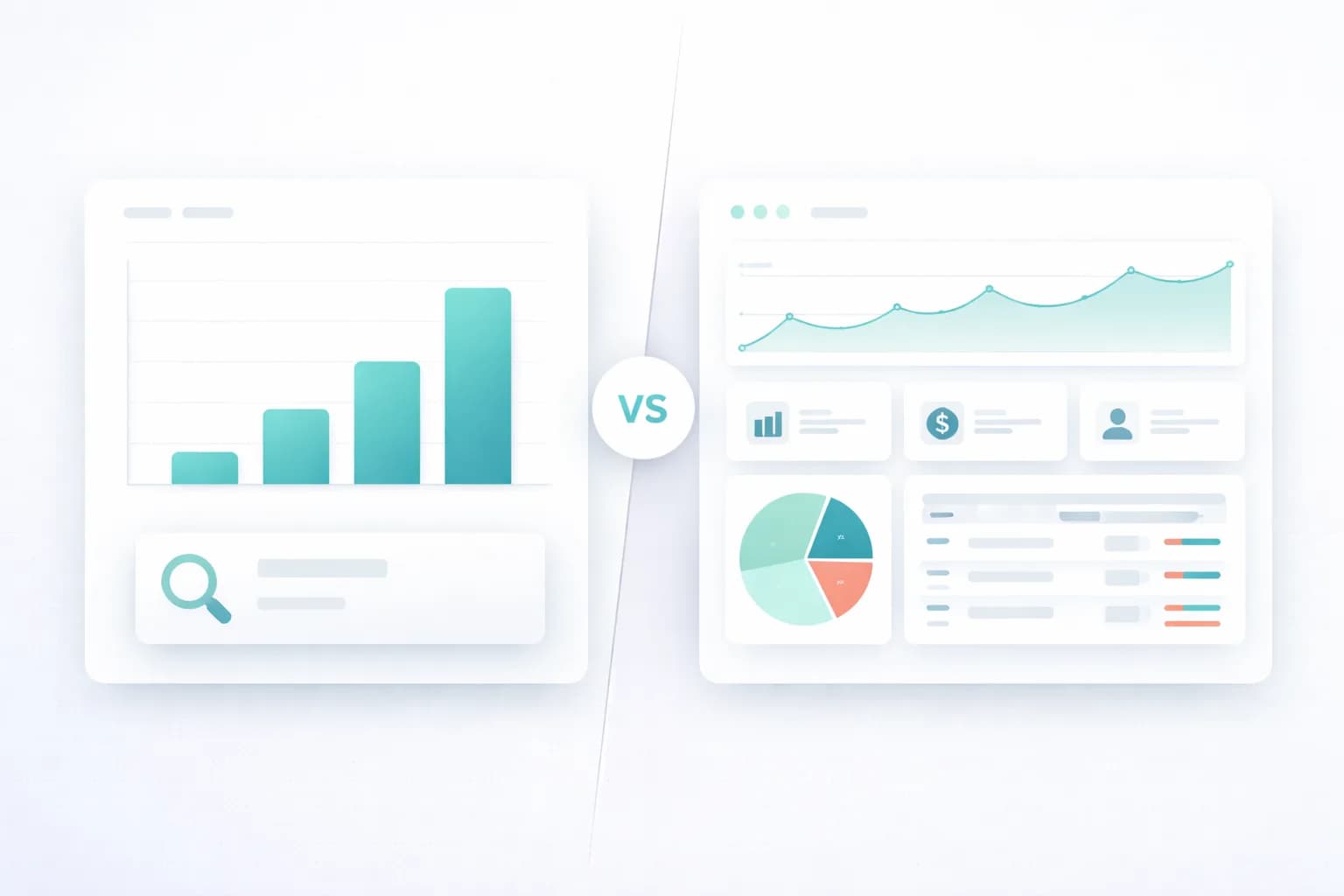
How to Set Up Revenue Dashboards in WHMCS
Step-by-step guide to building revenue dashboards in WHMCS. Track MRR, profit margins, and top clients directly from your admin panel.
MX Modules Team
(Updated )

In this article
- What You Will Need
- Step 1: Assess What You Need to Track
- Step 2: Set Up Built-in WHMCS Reports
- Step 3: Add Revenue Widgets to Your Dashboard
- Step 4: Configure Cost Tracking
- Step 5: Review and Iterate
- Common Mistakes to Avoid
- FAQ
- Can I set up revenue dashboards without installing any modules?
- How long does it take before the dashboard shows accurate data?
- Will dashboard widgets slow down my WHMCS admin panel?
- Conclusion
- Related Reading
Every hosting provider checks revenue at some point during the month. The question is whether you do it by clicking through multiple report screens, exporting CSVs, and piecing numbers together manually, or whether you see the numbers the moment you log in. A well-configured dashboard turns revenue tracking from a task you postpone into something that takes zero effort. This guide walks you through setting one up from scratch.
What You Will Need
Before you start, make sure you have the following in place:
- WHMCS 8.0 or later: Dashboard widgets are supported from version 8.0 onward. Earlier versions have a different admin home screen that limits what you can display.
- Admin access: You need full administrator privileges to configure reports, install modules, and manage dashboard settings.
- Your cost data: Gather your server costs, license fees, and any recurring business expenses. You will need these numbers in Step 4.
- 30 minutes: The initial setup takes about half an hour. After that, everything updates automatically. See the MX Metrics documentation for the full installation and configuration walkthrough.
Step 1: Assess What You Need to Track
Before configuring anything, decide which metrics actually matter for your business. Not every hosting provider needs the same dashboard.
| Metric | Priority | What It Shows |
|---|---|---|
| MRR | Essential | Total predictable revenue from active subscriptions. The most important number for any recurring-revenue business |
| Net Profit | Essential | Revenue minus all costs. Knowing your top line is useless if you do not know what you keep |
| Top Clients by Revenue | Essential | Your largest accounts. Helps prioritize support and retention |
| MRR by Product | Recommended | Which hosting plans, domains, and services drive the most revenue |
| Client LTV | Recommended | How much a client is worth over time. Informs acquisition spending |
| Support Cost per Client | Optional | Identifies clients consuming disproportionate support relative to their revenue |
Write down the three to five metrics that matter most to you. This keeps the dashboard focused instead of cluttered.
For a deeper look at which metrics matter and why, see the full WHMCS Revenue Analytics Guide.
Step 2: Set Up Built-in WHMCS Reports
WHMCS includes a reporting system out of the box. Start here before adding anything else.
What WHMCS provides natively:
- Income reports: Found under Reports in the admin area. These show invoices paid within a date range, grouped by various criteria.
- Client reports: Show client counts, signups over time, and service distribution.
- Product reports: Break down active services by product and product group.
How to use them effectively:
- Navigate to the Reports section in your WHMCS admin panel.
- Run the income-related reports for the current month and the previous month.
- Note the totals. These give you a revenue baseline.
What the built-in reports do not cover:
WHMCS reports are transaction-based. They tell you what was invoiced and paid. They do not calculate MRR from active subscriptions, they do not factor in your costs, and they do not display on the dashboard as widgets. You have to visit the reports page, select parameters, and run each report individually.
This is where most providers hit a wall. The data exists inside WHMCS, but there is no way to surface it on the admin home screen without additional tooling. If you have tried to track MRR inside WHMCS, you know this gap well.
Step 3: Add Revenue Widgets to Your Dashboard
To get live revenue data on the admin home screen, you need dashboard widgets. There are two approaches.
Option A: Build custom widgets
WHMCS supports custom admin dashboard widgets through its module system. If you have PHP development resources, you can write a widget that queries the tblhosting, tblinvoices, and tblinvoiceitems tables to calculate MRR and display it. This works, but requires ongoing maintenance as WHMCS updates its schema and API.
Option B: Use a pre-built module
MX Metrics revenue dashboard is a WHMCS module built specifically for this purpose. It adds dashboard widgets for MRR, ARR, net profit, top clients by revenue, MRR breakdown by product, and high-support clients. The queries are optimized with smart caching, so the dashboard loads quickly even with thousands of services.
Whichever approach you choose, verify the following:
- The widget calculates MRR from active recurring services, not from invoice totals. These are different numbers.
- Data stays on your server. Revenue data is sensitive. Avoid solutions that send financial data to external APIs.
- The widget updates automatically. If you have to manually refresh it, you will stop checking it within a week.
Step 4: Configure Cost Tracking
Revenue without costs is a vanity metric. To see actual profit, you need to track what each service costs you to deliver.
Three levels of cost tracking to set up:
1. Product-level costs Assign a default cost to each product in your catalog. For example, if your "Business Hosting" plan runs on a server that costs you $3 per account, set that as the product cost. This gives you a baseline profit margin for every product.
2. Per-service overrides Some clients have custom configurations that cost more than the default. A client on a "Business Hosting" plan who uses a dedicated IP or extra storage costs more to serve. Per-service cost overrides let you set a specific cost for individual services that deviate from the product default.
3. Fixed business expenses Server rack fees, software licenses, staff costs, domain registrar fees. These are expenses that do not map to a single product but reduce your overall profit. Track them separately so your net profit calculation reflects reality.
If you have been using spreadsheets for cost tracking, this is the step where you move that data into WHMCS so it stays current automatically.
MX Metrics includes a Costs Administration panel where you can configure all three levels directly inside WHMCS. If you are using a custom approach, you will need to build a similar interface or maintain costs in your database manually.
Step 5: Review and Iterate
A dashboard only works if you look at it. Build a simple weekly routine:
| Cadence | What to Check | Red Flags |
|---|---|---|
| Weekly | MRR and net profit on dashboard | Unexpected drops (churn or failed renewals) |
| Monthly | Top clients list, MRR by product | Large client downgrades, new clients entering top tier |
| Quarterly | Cost data accuracy | Server price changes, new infrastructure, license fee increases |
After the first month, revisit which widgets are on your dashboard. Remove anything you are not actually looking at. Add anything you keep checking manually elsewhere.
Common Mistakes to Avoid
1. Confusing invoiced revenue with MRR Invoiced revenue includes one-time charges, setup fees, and past-due payments. MRR only counts recurring subscription revenue. Mixing these gives you an inflated and unreliable number.
2. Ignoring costs until tax season If you only calculate profit once a year, you cannot make informed decisions during the year. Set up cost tracking from day one, even if the numbers are approximate. Approximate profit is far more useful than no profit data at all.
3. Overloading the dashboard A dashboard with fifteen widgets is just a different kind of report page. Limit yourself to five or six widgets that show the metrics you identified in Step 1. You can always access detailed reports separately.
FAQ
Can I set up revenue dashboards without installing any modules?
You can use the built-in WHMCS reports section to check revenue data, but you cannot add MRR or profit widgets to the admin dashboard without a module or custom development. The native dashboard shows service counts and support tickets, not financial metrics.
How long does it take before the dashboard shows accurate data?
Revenue data based on active services is accurate immediately. Cost data is accurate as soon as you enter it. If you are setting up cost tracking for the first time, allocate an hour to enter product costs and any fixed expenses. After that, the dashboard reflects real profit margins right away.
Will dashboard widgets slow down my WHMCS admin panel?
Poorly written queries can slow things down, especially with large databases. Look for solutions that use query caching. MX Metrics, for example, uses smart caching so the dashboard loads quickly regardless of how many services you manage.
Conclusion
Setting up a revenue dashboard in WHMCS is not complicated, but it does require deliberate effort. Identify your key metrics, use the built-in reports as a baseline, add dashboard widgets for live visibility, and configure cost tracking so you see real profit, not just revenue.
The result is an admin panel that tells you the financial health of your business the moment you log in. No report exports, no spreadsheets, no guesswork.
Ready to add revenue widgets to your WHMCS dashboard? MX Metrics gives you MRR, profit, top clients, and cost tracking for $15/month. See it in action on the product page.
Related Reading
- WHMCS Revenue Analytics: The Complete Guide: Full pillar guide covering all aspects of revenue tracking in WHMCS.
- How to See MRR in WHMCS: Focused guide on calculating and displaying Monthly Recurring Revenue.
- Why Spreadsheets Fail for WHMCS Cost Tracking: The case for moving cost data out of spreadsheets and into your billing system.
MX Metrics
Revenue Analytics for WHMCS
Track MRR, ARR, and real profit per client directly in your WHMCS dashboard. Cancel anytime.
Documentation
Did you find this helpful?
Join other WHMCS professionals and get our latest guides and AI tips directly in your inbox.
MX Modules Team
We run a hosting business on WHMCS. These modules are the tools we built to solve our own problems, and now we share them with other providers.