User Guide
MX Metrics for WHMCS
Revenue Analytics & Profitability Tracking
Version 1.7.0 · Complete documentation
Last updated: August 2026
Installation
Estimated time: 5 minutes
Requirements: WHMCS 8.0+, PHP 8.1+, ionCube Loader
Step 1: Upload Files
- 1.Extract
mx_metrics.zip - 2.Upload the
mx_metrics/folder to/modules/addons/
Expected folder structure:
/whmcs/modules/addons/mx_metrics/
├── mx_metrics.php
├── hooks.php
├── hooks/
├── widgets/
├── lib/
└── templates/
Step 2: Activate & License
- 1.Go to Setup → Addon Modules
- 2.Find "MX Metrics" and click Activate
- 3.Click Configure and enter your license key
- 4.Set Access Control to "Full Administrator"
- 5.Click Save Changes
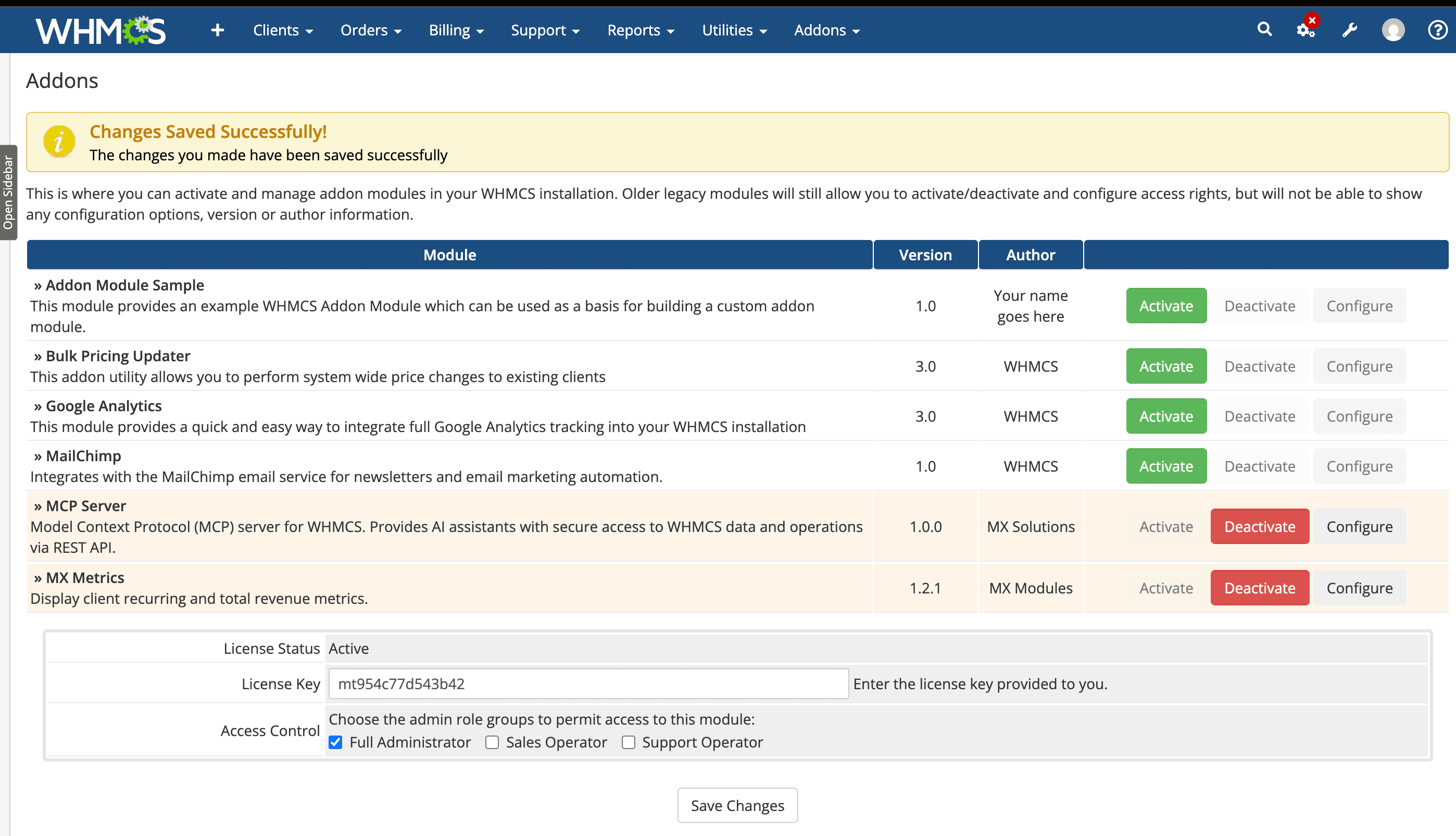
Addon configuration with license key
Done! The widgets will appear on your Dashboard automatically.
Dashboard Widgets
MX Metrics adds 4 dashboard widgets plus a Client MRR Profile on each client page, and 3 admin tabs (Settings, Cost Management, Service Breakdown). Each component answers a specific business question.
Dashboard with all MX Metrics widgets
1. MRR & ARR Widget
“Am I actually making money?”
MRR - Monthly Recurring Revenue from all active services
ARR - Annual Recurring Revenue (MRR × 12)
Recurring Services Cost - Sum of all service costs
Fixed Expenses - Your business expenses by category
Net Recurring Profit - Revenue minus all costs
Profit Margin - Net profit as a percentage of revenue. Compare against hosting industry benchmarks (typically 30-50%) to see where you stand
Tip: Use the Monthly/Annually toggle to switch between views.
2. Top Clients by Revenue
“Who are my most valuable clients?”
Shows your top clients ranked by revenue
Toggle between Monthly, Annually, or All-Time views
Click any client name to open their profile
3. Recurring Revenue Breakdown
“Which products drive my business?”
Revenue breakdown by product/service type
Shows active service count and percentage
Sort by Revenue or Popularity
4. High Support Clients
“Who costs me the most in support?”
Clients ranked by total support tickets
Helps identify high-maintenance accounts
Use this data to justify pricing adjustments
5. Client MRR Profile
“How much MRR does this client generate?”
| MRR | $480 |
| ARR | $5,760 |
| Rank | #12 by MRR |
| Active Services | 4 |
When you open any client's profile page (Clients → View/Search → click a client), an MRR Overview panel appears at the top showing:
- MRR: This client's Monthly Recurring Revenue from all active services and domains
- ARR: Annual projection (MRR x 12)
- Rank: This client's position compared to all clients, ranked by MRR
- Active Services: Count of active services and domains
MRR data rows are also injected into the native Clients Information table for quick reference without scrolling.
Note: The widget respects your display currency, compact numbers, and hide decimals settings.
MCP Integration: Flexible Client Lookup
When used with MCP Server, the MetricsService API supports flexible client MRR lookups. You can query by user ID, email address, client name, company name, or domain. Ask your AI assistant something like “What is the MRR for acme.com?” and it will resolve the client and return their metrics.
Cost Management
MX Metrics tracks costs at three levels: fixed business expenses, product-level costs, and service-level overrides.
Fixed Expenses (Business Costs)
Track your recurring business expenses like servers, licenses, marketing, and staff costs.
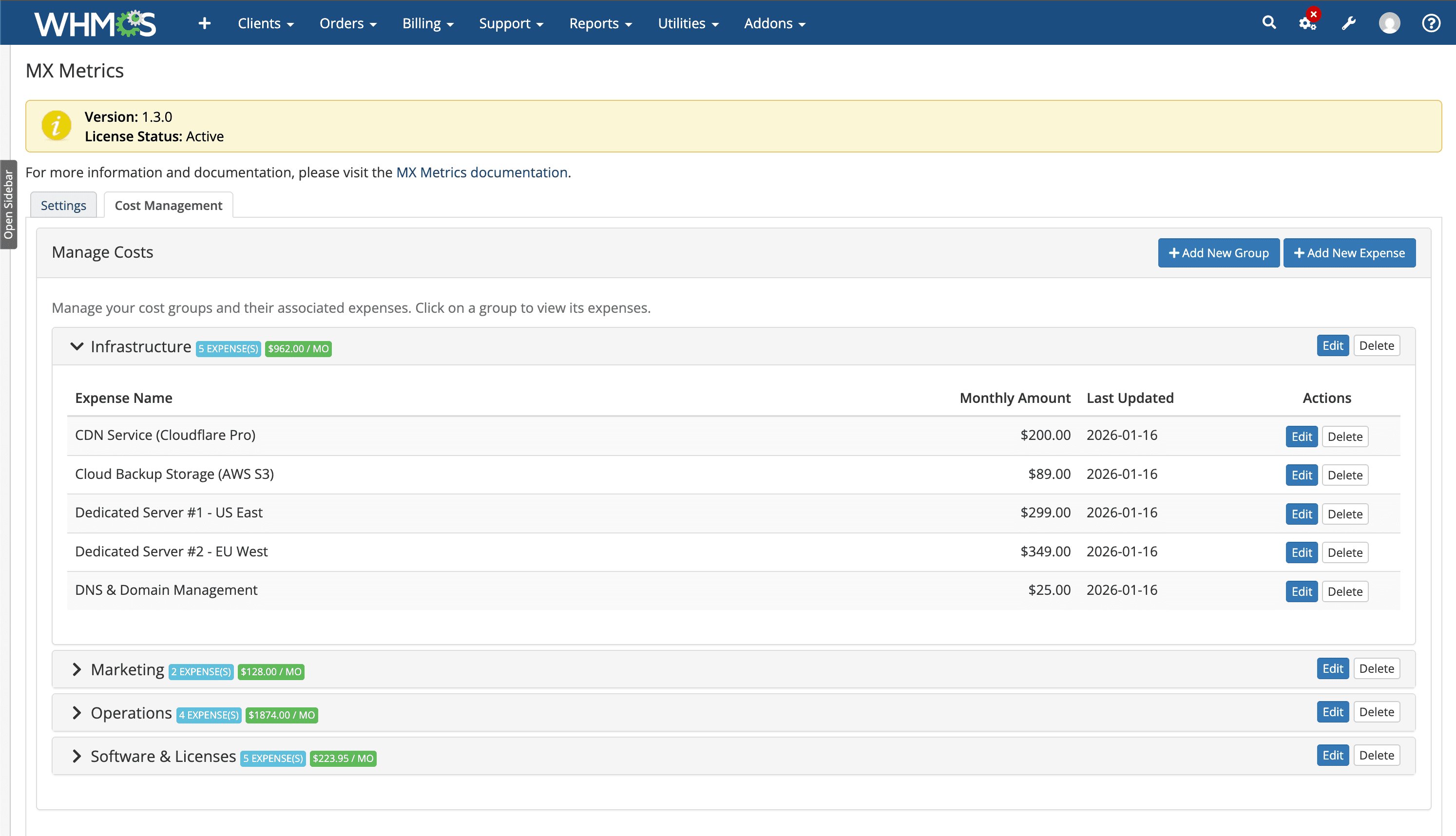
Cost Management panel in Addons → MX Metrics
How to add expenses:
- 1.Go to Addons → MX Metrics
- 2.Click the Cost Management tab
- 3.Click + Add New Group to create a category (e.g., "Infrastructure")
- 4.Click + Add New Expense to add individual costs
Example groups: Infrastructure (servers, CDN, backups), Software & Licenses (WHMCS, cPanel), Operations (staff, contractors), Marketing (ads, affiliates)
Product Default Cost
Set a default monthly cost for each product. This cost applies to all services of that product type.
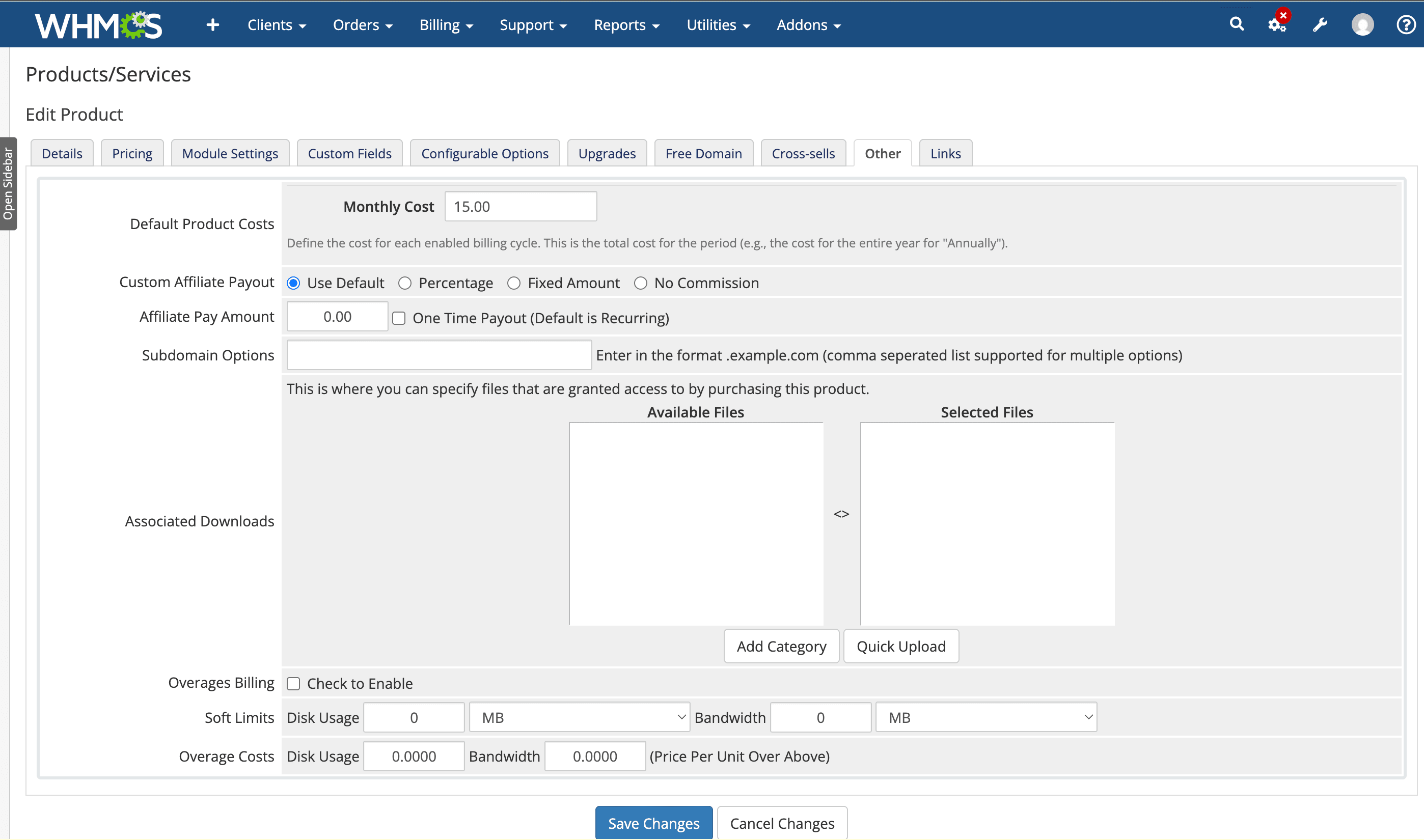
Monthly Cost field on the product Pricing tab
How to set product cost:
- 1.Go to Setup → Products/Services → Products/Services
- 2.Click on a product to edit it
- 3.Go to the Pricing tab
- 4.Enter the Monthly Cost (what you pay for this service)
- 5.Save Changes
Service Cost Override
Override the default cost for individual services. Useful when you have negotiated different rates with suppliers.
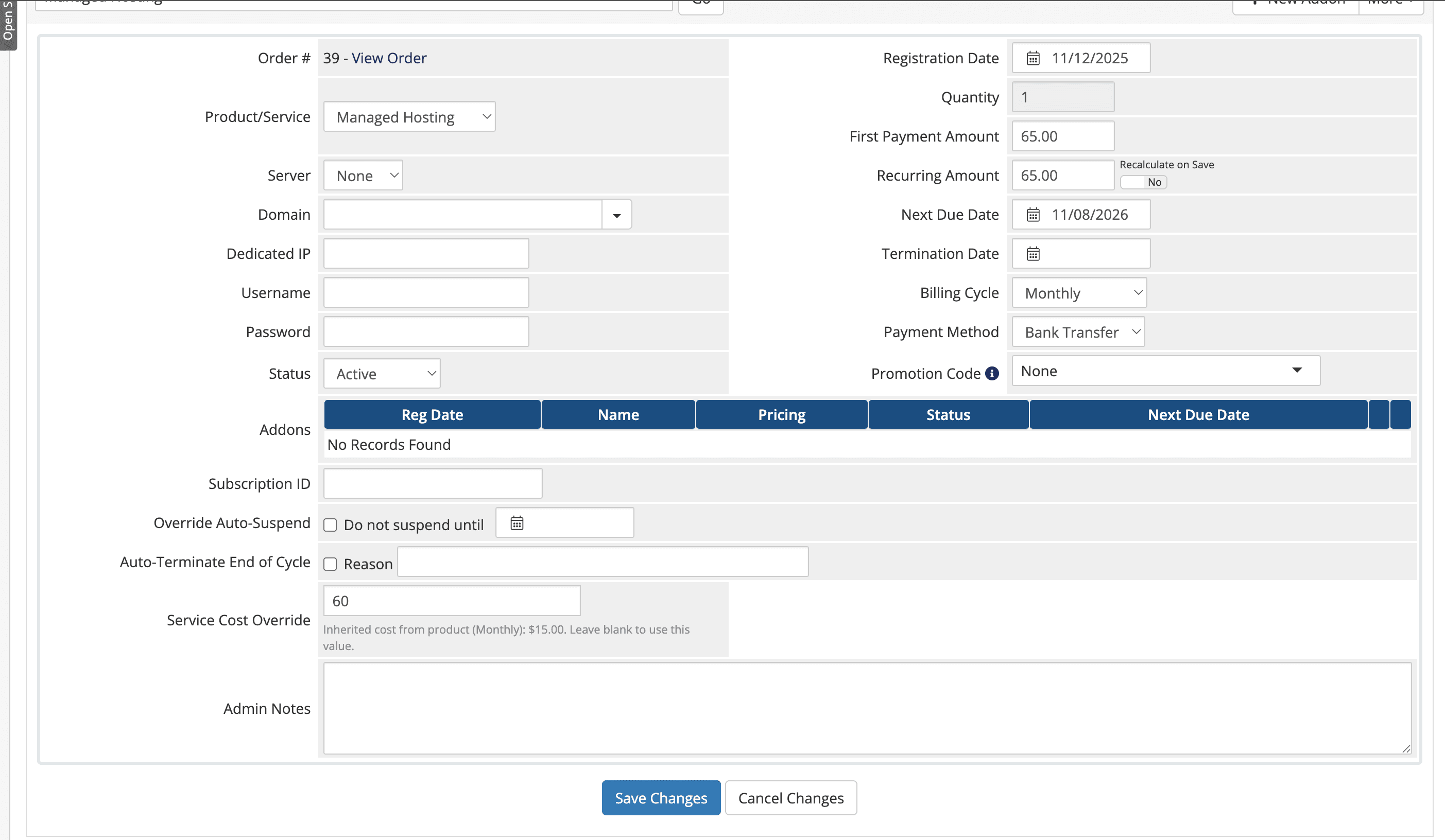
Service Cost Override field on the service edit page
How to override a service cost:
- 1.Go to Clients → Services (or open a client's profile)
- 2.Click on a service to edit it
- 3.Find the Service Cost Override field
- 4.Enter the cost (leave blank to use product default)
Cost Priority: Service Override > Product Default > None (shows warning in widget)
Settings
Configure MX Metrics behavior from the addon's Settings tab.
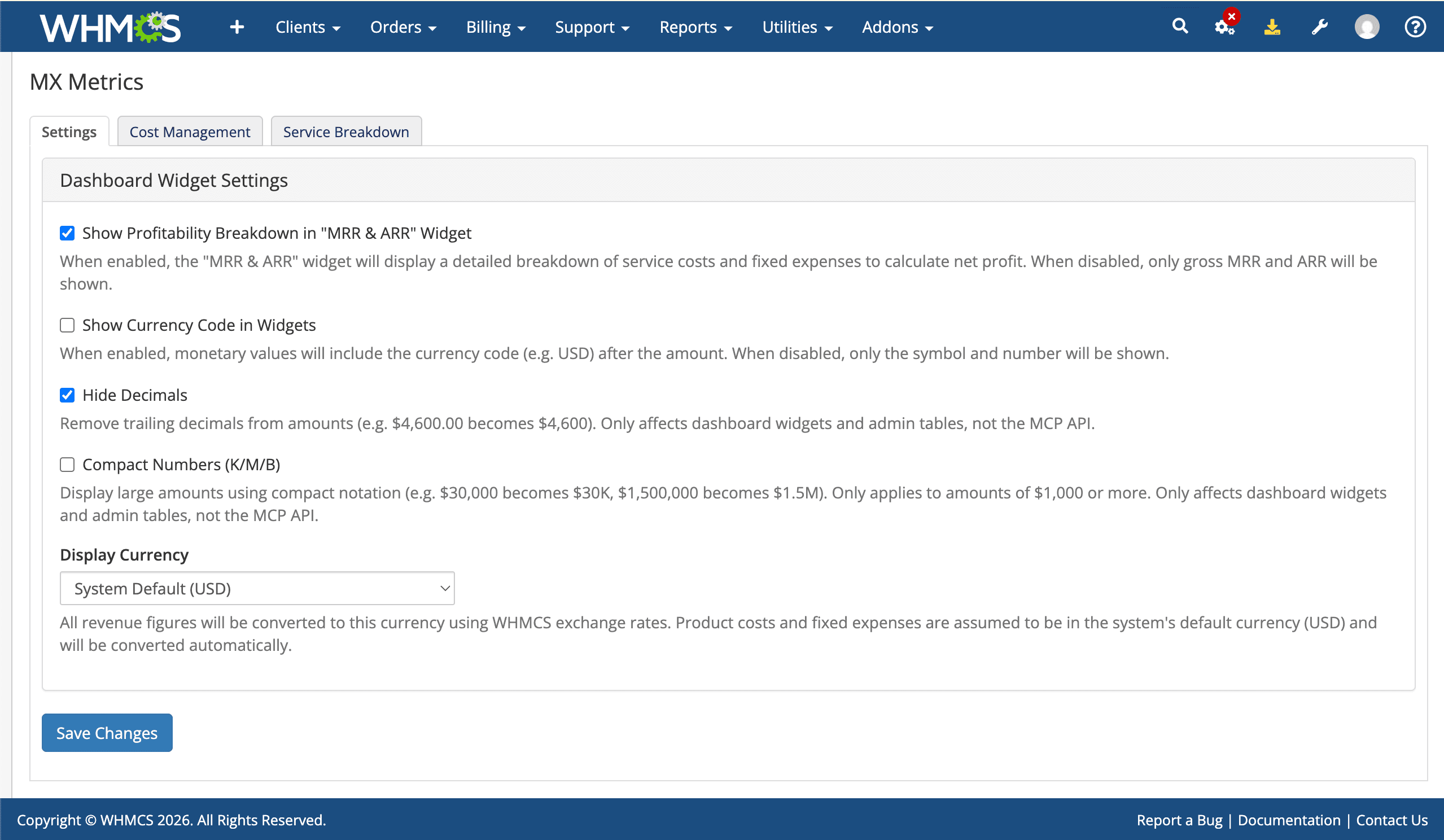
Settings tab in Addons → MX Metrics
Available Settings
Show Cost Breakdown
Enable or disable the profitability section in the MRR & ARR widget. When disabled, only MRR/ARR values are shown.
Display Currency
Choose which currency to display all metrics in. Supports 32+ currencies with automatic conversion using WHMCS exchange rates. Costs are stored in your base currency and auto-converted for display.
Required: Enable Currency Auto Update in Configuration → System Settings → Automation Settings → Currency Auto Update Settings so WHMCS keeps exchange rates current via the European Central Bank (ECB).
Compact Numbers (K/M/B)
Display large amounts in shorthand notation: $30,000 becomes $30K, $1,200,000 becomes $1.2M. Applied across all widgets when enabled.
Hide Decimals
Remove decimal places from all displayed amounts. For example, $4,500.00 shows as $4,500. Useful for dashboards where precision to the cent is not needed.
Profitability Breakdown
Toggle the cost breakdown section in the MRR and ARR widget on or off. When enabled, shows service costs, fixed expenses, net profit, and profit margin.
Sample Data (Seed/Clear)
One-click buttons to populate demo cost groups, fixed expenses, and MRR snapshots for testing. Useful for evaluating the addon before entering real data.
Caution: The Clear button removes all cost groups and fixed expenses, not just sample data.
Excluded Services
Not every product on your price list is profitable. In Addons → MX Metrics → Settings → Excluded Services, search for a product and exclude it from MRR, ARR, and revenue everywhere.
How it works
- Type in the search box to find the product you want to exclude
- Click it in the dropdown. It is excluded immediately, no page reload
- It now appears in the "Currently excluded" list, with your MRR and ARR updated to match
- Click the × next to any excluded product to include it again, any time
Where the exclusion applies
Everywhere: the MRR & ARR widget, Recurring Revenue Breakdown, Top Clients by Revenue, and any AI assistant connected through the MX-MCP addon. There is no separate view where excluded products still count. The number you see is always the number you get.
Note: The Service Breakdown tab still shows every product, including excluded ones, since it is a revenue-inspection view rather than a headline number.
Service Breakdown Tab
The Service Breakdown tab (in Addons → MX Metrics) shows revenue broken down by service/product type with expandable accordion panels.
How it works
- Each product/service group shows as a collapsible panel with service name, client count, MRR/MO, and ARR/YR
- Expand any panel to see individual clients: name, domain, billing amount, billing cycle, and calculated MRR
- Sorted by MRR descending so your highest-revenue services appear first
Deep-link from Revenue Breakdown
Click any product name in the Recurring Revenue Breakdown dashboard widget to jump directly to that product in the Service Breakdown tab. The tab auto-scrolls and expands the relevant accordion panel.
Note: The Service Breakdown tab respects your Compact Numbers and Hide Decimals settings.
Security
MX Metrics follows WHMCS security best practices to protect your admin panel.
CSRF Protection
All form submissions are validated with WHMCS CSRF tokens to prevent cross-site request forgery attacks.
XSS Escaping
All user-supplied data (client names, product names, expense labels) is escaped before rendering to prevent cross-site scripting.
Performance Caching
Widget data is cached for 10 minutes to minimize database queries. Cache is invalidated automatically when cost data changes.
Frequently Asked Questions
Why do I see a warning icon next to Net Profit?
How is MRR calculated?
Can I hide the cost breakdown from staff?
What happens if I don't set any costs?
Does MX Metrics affect WHMCS performance?
Which WHMCS versions are supported?
What do Compact Numbers and Hide Decimals do?
Can I exclude a service from my MRR calculation?
Need Help?
Our support team is ready to assist you with any questions about MX Metrics.